Showing posts with label GIS. Show all posts

Saturday, 7 January 2017

Filling SpatialPolygons with an image

Plotting country outlines is really easy in R, but making those plots a bit more fancy can be frustrating. I thought it would be nice to fill the country outlines with an image rather than with a solid colour. How hard could it be? After some googling it appears that there is very little documentation on this topic. The only document that I found was by Paul Murrel (2011). He plots a black filled country shape first and then captures the rasterized shape using the grid.cap function from the grid package. This captured raster is then used as a mask on the image that needs to be plotted in the shape of a country.

I'm having difficulties with this approach for two reasons: one, I can't seem to get grid.cap working as it should; two, I don't like having to plot the shape of a country first in order to create a mask. The first matter is probably my own wrongdoing, but all the grid.cap function returns me is a matrix of white pixels. I grew tired of figuring out what I was doing wrong. For the second aspect, I think a more direct approach should be possible by using the ‘over’ function from the sp package.

So these are the steps that I took to tackle the problem:

  1. Download the country shape
  2. Download a suitable png image
  3. Georeference the image, such that it matches the location of the country
  4. Use the ‘over’ function to determine which pixels are inside the country shape
  5. Plot the pixels of the image that are inside the country and plot the outline

In this post I will show you how to create the image shown below, where each country is filled with an image of their respective flag. Below I will explain in a bit more detail how this image was created, following the steps listed above. I've also provided the script used to create the image below, where each of the steps are also clearly marked.

The country shapes for step 1 are downloaded from GADM using the getData function from the raster package. Of course you can use any SpatialPolygons object from any other source.

The country flag png images are downloaded from wikipedia (step 2). So this example shows how to download png image and turn it into a usable format. If you like, you can use any image format like jpg or tif, but that will require some modification of the code presented here.

To understand the next step (3), I'm using georeferencing and I may need to explain what that means. Basically, this is telling where and how the image should be positioned in the coordinate reference system (CRS) of the SpatialPolygons objects (the country outlines). In this step I'm instructing the system to stretch the image to the bounding box of the respective country. This also means that the aspect ratio of the original image is probably messed up. If you would like to keep the original aspect ratio, you need to modify this step. The image was downloaded as an array with the red, green and blue component in separate dimensions. With the brick function from the raster package this array is turned into a correctly georeferenced brick object.

Now that we have properly positioned the image, we need to determine which pixels are located inside the country outlines (step 4). For this purpose, we use the ‘over’ function from the sp package. This function will not accept a raster brick object as input. The raster brick object is therefore cast into a SpatialGrid format. The function will return a dataframe with the country shape element that matches with a specific grid cell. From this information it can be derived whether the pixel is situated inside or outside the country outline. The pixel values for those situated outside the country outlines are set to NA. Note that this can be a time-consuming step. Especially when the resolution of your image is high, and/or the country outline is complex (i.e., contains details, a lot of islands and/or holes), so either be patient. Alternatively, you can speed up the process by either lowering the resolution of your image (hint: focal) or simplifying the country outline (hint: gSimplify).

All there is left to do is to plot the image and the outline (step 5). I use the plotRGB function from the raster package to plot the image. Don't forget to set the ‘bgalpha’ argument to 0, to ensure that NA values are plotted as transparent pixels. Otherwise, it will plot white pixels over anything that has previously been plotted.

I've wrapped four of the five steps in a function, such that I could easily repeat these steps for different countries. Hopefully this post will help you to create your own cool graphics in R. Good luck, and please let me know in the comments if any of the steps are not clear...

Monday, 19 December 2016

Segmenting SpatialPolygons

Both SpatialPolygons and SpatialPolygons consist of list of Polygons. Each of these Polygons in turn consist of vertices, i.e., the points where the edges of the polygon meet. When you transform a SpatialPolygons(DataFrame) to a different projection (e.g., from long-lat coordinates to UTM) with the spTransform-function, actually only the vertices are transformed (and not the lines connecting them). This means that also in the new projection straight lines are drawn between the vertices, whereas in reality they should be curved (due to the quasi-spherical shape of our world). For most shapes this isn't much of an issue. But when your shape covers a large area, you could run into serious problems.

This problem can be solved by adding more vertices to the polygons. In other words, add new vertices by interpolating between the existing vertices. If you do this before re-projecting, the new projection will be a lot more accurate. I tried to find an existing package in R that would do this, but I could not find any (please leave a comment if you did find an alternative). Therefore, I've written a small function to take care of this myself, which I will demonstrate in this post.

The source code of this function and the accompanying example is given below. This code is also used to produced the graphical illustration below. Note how the red line crosses the islands Northeast of Scotland in the original projection. Compare this with the new projection of the red lines with and without segmentation. Also note that the red lines in the new projection are straight when we don't apply segmentation, and they are curved (as they are supposed to be) when we do apply segmentation.

The segmentation is achieved relatively simple by looping all the lists of Polygons with the lapply function and then looping each line segment with the apply function (see R script below). The new vertices are derived via linear interpolation using the approx function. You could go for something more fancy like spline interpolation, but linear will do just fine in this example. As I've implemented all this in the function named ‘SPSegmentation’, you can simply call it on any SpatialPolygons or SpatialPolygonsDataFrame object you would like. With some modifications, you could also use this function of SpatialLines and SpatialLinesDataFrame objects.

In case you want to achieve the opposite (i.e., reduce the number of vertices in a SpatialPolygons(DataFrame)), you can use the gSimplify function from the rgeos package. This uses a Ramer–Douglas–Peucker algorithm to simplify the shape, which could save you some computing time, but your shape will also become less detailed as a result.

Friday, 28 October 2016

Openstreetmap relation, please be a SpatialPolygons object

The sp package is the package when it comes to handling spatial data in R. Getting to know how this package work can take some time, but it's well worth it. It can be a pain to import spatial data from for instance www.opentreetmap.org.

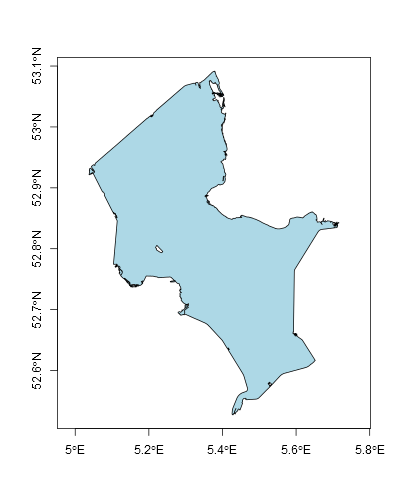
The other day for instance, I required an outline of Lake IJssel. How hard could it be to get that from openstreetmap? Well, getting the data is not all that hard, but converting it into something workable really got me pulling my hair out. In order to save future frustrations, I decided to share my solution with you.

The first step is to get the relation id number from openstreetmap. This can be easily obtained by searching the website for ‘Lake IJssel’. After clicking the first hit that represents a water body, you will find the relation id.

The second step is to download the data in R using this relation id. This can be done with the get_osm function of the osmar package. This data can be converted into a SpatialLines object using the as_sp function from the osmar package. However, I don't want a SpatialLines object; I want it to be a SpatialPolygons object. And that is the tricky bit, because there is no package available (that I know of) that can do this directly.

So this is the trick that I applied. First you need to join the lines in the SpatialLines object, using the gLineMerge function from the rgeos package (it took me a while to figure this one out!). Then convert it into a PolySet using the SpatialLines2PolySet function from the maptools package. Only then can it be converted into a SpatialPolygons object using the PolySet2SpatialPolygons function from the maptools package. If anyone knows of an easier way, pleas let me know in the comments.

So, there you have it. A SpatialPolygons object of Lake IJssel, that is actually useful for my purpose. The code below will do what I've described in this post; feel free to try it yourself! Note that it may not work on all openstreetmap data...

Saturday, 5 September 2015

Geotags from JPEG images

Most modern camera's and telephones can geotag their pictures. Kind of neat that you can use your camera as GPS logger. Even better if we could do something useful with it in R. In this post I will show how GPS coordinates can be extracted from jpeg images and utilized in R. Although it sounds pretty simple, and it is, it is not very straight forward to achieve.

In this example I will use pictures I made on a day out. We made a small round trip by steamtram from Hoorn to Medemblik where we visited castle Radboud. I will show how to plot the locations where I took the pictures can be plotted onto a map. For privacy reasons I will not share the pictures. However, the example should also work with your own geotagged pictures.

Geotags and other meta-information is stored in jpeg files in the so-called exchangeable image file format (or EXIF). Luckily it can be easily obtained using the function GDALinfo. This is where things get messy. The function returns the EXIF codes as character strings in the attributes of the object that is returned. So, we need to fetch the relevant attributes; find the relevant EXIF codes; and extract the information from the code and convert it into something workable.

The EXIF codes for GPS information will look something like this ‘EXIF_GPSLatitude=(52) (40) (57.45)’. I use regular expressions to extract the coordinate information from between the brackets. I'm no expert in the field of regular expressions, so there may be more efficient regular expressions to get the right information. If you have improvements, please feel free to leave them in the comments.

I've wrapped the routines to isolate the respective EXIF code and to extract the numerical coordinates from the literal EXIF character string in slick functions (‘get_EXIF_value’ for getting the literal string and ‘get_EXIF_coordinate’ to get the numerical coordinate from that string).

After some rearranging of the data, we have a data.frame holding the filename and the longitude and latitude in decimal WGS84 degrees. I noticed that not all my pictures had a geotag (even though I had geotagging turned on, on my device). Apparently taking pictures is not a full proof method for logging locations (at least not on my device).

Let's plot the coordinates on a map. I download some OpenStreetMap-based map tiles using the function ‘openmap’. This function conveniently allows you to specify the upperleft and lowerright coordinates of your map. That way, you can be certain that your locations will fit on the map.

As we cannot change the projection of the downloaded maptiles. We therefore have to transform the coordinates of our locations to the same projection as the maptiles. We do this by first creating a SpatialPoints object from our coordinates and then transform those coordinates to the proper projection by applying spTransform. Plotting is now simply a matter of calling some plot routines.

To make things a bit more fancy, I used the rainbow palette to color the locations in the order in which the pictures were taken. Note that the use of geotagged images is limited. Proper GPS loggers for instance also log the precision of the position and your speed. But I will save that for a future post.

Sunday, 16 August 2015

As the world turns: projecting a 2D image onto a 3D sphere

How difficult could it be two project a two dimensional image onto a three dimensional sphere in R? Well, it's not really that difficult, but it took me quite a while to figure out how to achieve this. Now why would we want to do this in the first place? Well, you could use such a technique to create a three dimensional model of Earth on which you can plot all sorts of interesting global phenomena. Well, I couldn't think of many other useful applications besides modelling fancy Christmas ornaments. For now we'll stick to the model of Earth.

This blog was rewritten several times, before publication, as I tried several strategies with varying degrees of success. I started with the persp function from the graphics package. Which just didn't work. This function can plot a single hemisphere, with limited control over the colours used for its surface.

Then I ended up using the spheresurf3D function from the plot3D package. Although I finally got it to work, it required a horrific workaround. The plot3D package uses a matrix of colour values that will be used in combination with a colour ramp to visualise on the surface. My workaround was to get all unique values from the target image and create a matrix with indices for those colours. I will not present this strategy in detail here due to this monstrosity and the other graphical limitations of this package. Don't get me wrong, I think plot3D is a great package, with many useful applications, it's just not the ultimate tool for what I want here.

The easiest way to create a three dimensional model of the globe was with the rgl package. But first, some code to prepare ourselves. The code below downloads a topographic map from NASA's website, which we will use to project onto a sphere. We convert the jpeg image into a png file, as the rgl package will only accept that file type. Note that free third party software (ImageMagick) is used for this step. We also specify a function to convert polar coordinates (longitude, latitude and altitude) into Cartesian coordinates. We also specify a matrix with Cartesian coordinates (‘world_coords’) which we will use to georeference the topographic image.

Next, we set up an rgl device and our model. We create an environment with a black background (space), and set up a light to represent the sun. With the persp3d function we create a model of Earth. We use the ‘texture’ argument to project the topographic image onto the sphere. We add a slightly larger transparent light blue sphere to represent the Earth's atmosphere. Finally, we add a small red sphere hovering above my home country. That's it! We have a simple model of our planet. The nice thing of rgl devices is that they are interactive. You can rotate your model and zoom in and out. With the writeWebGL you can even save your interactive model as a web page. For me, this web page worked offline, but due to restrictions of blogspot, I could get it to work on my blog.

In order to produce something that I can show here, I created an animation. Therefore I first changed the orientation of the model, and then animated a spinning world with the movie3d function.

Once you know how to do it, it's not that difficult to create an animation of a rotating planet in R. Of course there is always stuff that I could improve upon. For example, the Earth isn't a perfect sphere, but I had assumed so as a simplification. If you have any refinements for the approach shown here, please let me know in the comments.

Saturday, 8 August 2015

ContourLines to SpatialPolygons

Having a very large gridded data set (e.g., raster or SpatialGrid) can be very useful for analyses. However, for visualisation it can be tedious to have a very large spatial grid, consuming a lot of memory and processing time. Converting such gridded data to contour lines could save a lot of time, especially when you want to reuse the data. Also, it is much easier to reproject polygons to a different coordinate system than gridded data.

Although there are several proper function to create contour lines from matrix data, creating outlines in the form of a SpatialPolygonsDataFrame for the purpose of reusing it is a pain. This post shows the problems I ran into and how I solved them. Improvements and suggestions are welcome in the comments below.

I've tried several strategies but I only present the strategy I got to work here. The example uses the volcano matrix. Although converting gridded data to SpatialPolygons becomes particularly useful for large grids, I use the small volcano data set as prove of principle.

My first attempt uses the functions rasterToContour, SpatialLines2PolySet, and PolySet2SpatialPolygons functions for conversion steps.

Of course, it couldn't have been that easy... The above script produces this:

Apparently, the PolySet2SpatialPolygons does not close the polygon rings correctly at the edge of the volcano matrix as I would have hoped. Now, I have to confess, I work a lot with ‘quick and dirty’ solutions, as is the case here. In order to fix the problem with the polygons that intersect with the edge of the volcano matrix, I simply modify the original matrix. I simply add an extra row and column to each side of the matrix, with a value smaller than the minimum value in the original matrix (in this case I use the value 60). This creates an artificial ridge in the dataset that forces the routines to correctly close the polygons:

The resulting plot shows that we are almost there:

There is still a problem that is hardly visible. Take a closer look at the crater of the volcano. The crater should be deeper, which isn't shown by the colour gradient. Some of the polygons should contain holes, which aren't automatically detected and converted by the PolySet2SpatialPolygons function. Maybe there are better solutions, but I chose to manually hack the SpatialPolygons object. I did this by looping through all polygons and when a polygon is inside another polygon of the same layer, it should be a hole. In that case, the ‘hole’-flag should be set to TRUE and the coordinate order should be reversed (hole ring direction should be opposite to that of the parent polygon). Not elegant, but hey, it works:

Almost there again:

The only thing left to do is to remove the artificial edge that we created earlier. This can easily be done with the function gIntersection:

There you are. We have successfully converted the grid into a much lighter (at least compared to large grids) SpatialPolygons object which we can save, load and reuse in plotting routines. I realise that the SpatialPolygons object in this example isn't georeferenced. But the principles shown here can also be applied to georeferenced rasters and SpatialGrid objects.